Aspiring interface designers
Explore a practical tool for turning screen ideas into reviewable designs. Practice arranging content and connecting screens instead of treating each screen as an isolated picture.
✳ Welcome to Worknest — Co-Work and Learn in Chiniot
Call +92 301 5332656 ↗Turn an interface idea into a design that someone can review. Explore Figma Design training at Worknest in Chiniot, with a focus on organized files, flexible layouts, reusable components and connected prototypes.
Practice making changes without rebuilding every screen. Use clear naming, consistent visual choices and review feedback to prepare a design that is easier to understand before development.
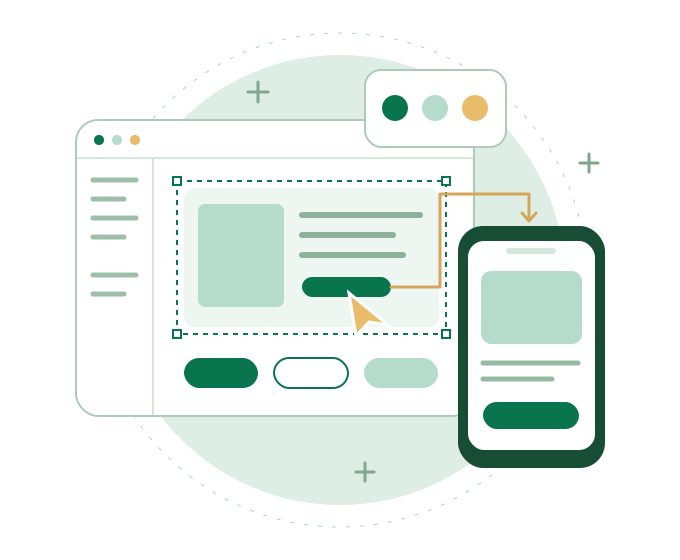
Explore a practical tool for turning screen ideas into reviewable designs. Practice arranging content and connecting screens instead of treating each screen as an isolated picture.
Develop an organized approach to layouts, styles and reusable elements. Practice making consistent changes across a small set of website screens.
Explore how interface files are structured before implementation. Use layouts and prototypes to discuss spacing, screen states and intended behaviour with a designer or client.
Practice preparing files that are easier to present and explain. Focus on a clear brief, reusable elements and review feedback.
Explore the Figma workspace and the role of frames, pages and layers. Name elements clearly and group related work so another person can follow the file.
Use Auto Layout to manage spacing, alignment and padding. Explore resizing choices and constraints, then review what happens when text grows or a frame becomes narrower.
Choose readable text and a clear visual hierarchy. Use reusable styles to organize recurring type and colour choices instead of adjusting every element separately.
Build reusable interface elements, such as buttons and cards. Explore variants for related states or options. Organize a small set of components and styles as the foundation of a consistent design system.
Link screens to demonstrate a task, such as exploring a service and making an enquiry. Review how buttons, navigation and screen changes help someone follow the flow. A prototype demonstrates an idea; it is not a functioning website.
Use comments and feedback to make a review easier to follow. Organize screens, name components and document important behaviour. Prepare relevant assets and notes so a developer can understand what needs to be built.
Figma Design is the main tool in the planned learning path, using its browser or desktop app. The focus is on layout, components, prototyping and clear file organization.
Explore Community resources and supporting plugins with a purpose. Review the source, usage terms and any cost before using someone else's assets or adding a plugin. Confirm the account, equipment and plan features needed for the current course; paid subscriptions and premium resources are not assumed to be included.

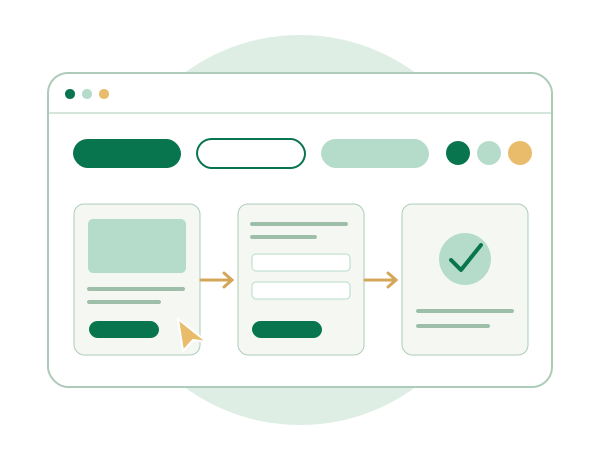
Choose a sample service website or app idea. Prepare a short brief and design a small set of screens that supports one clear task.
Create reusable buttons, cards and text styles. Use Auto Layout to review spacing and resizing, then connect the screens in a prototype. Keep names and component choices consistent across the file.
Present the flow, collect feedback and make a revision. Prepare notes that explain the main interactions and any states a developer would need to consider.
This is an example of practice work, not a promise of a real client assignment or a fixed number of finished projects. Ask Worknest about the current project brief, guidance and scope before joining.
Ask Worknest about the current course duration, fees, batch timings, delivery format and entry expectations. Share your design experience and whether you want to focus on websites, apps or organizing reusable interface elements.
Confirm the practice work, software access and equipment requirements for the current option before deciding to join.
Figma offers a free Starter plan, with limits on some features. Check the current Figma plans and ask which features the current course needs. Do not assume that a paid seat or subscription is included.
You can enquire as a beginner. Tell Worknest what you have tried and confirm the current starting point. Familiarity with basic visual design can help, but entry expectations should be checked before enrolling.
No. This path focuses on design files and prototypes in Figma. Connecting screens does not build a working website or app; development is a separate step.
This course focuses on using Figma to organize layouts, components and prototypes. UI/UX Design focuses more broadly on understanding user needs, planning flows and reviewing design decisions. The two learning paths are related.
Components, variants and consistent design patterns are part of the planned topics. Ask which exercises and file-sharing features are used in the current course, especially where access depends on a Figma plan.
No. Training supports learning and practical work. It does not guarantee clients, employment, income or business results.
Tell us what you want to design and what tools you have used. Ask about the current topics, practice work and joining details so you can decide whether this path fits your goal.
Ask about the Figma Design course · Call +92 301 5332656
Prefer email? Email Worknest and mention your interest in Figma Design.
Compare the Web Design learning paths to see how the specializations fit together. Explore the UI/UX Design course for user research and design reasoning, or the Graphic Design course — page awaiting publication for visual communication and marketing graphics.
Explore all courses to compare the complete learning directory.